
第1页 / 共12页
第2页 / 共12页
试读已结束,还剩10页,您可下载完整版后进行离线阅读
THE END
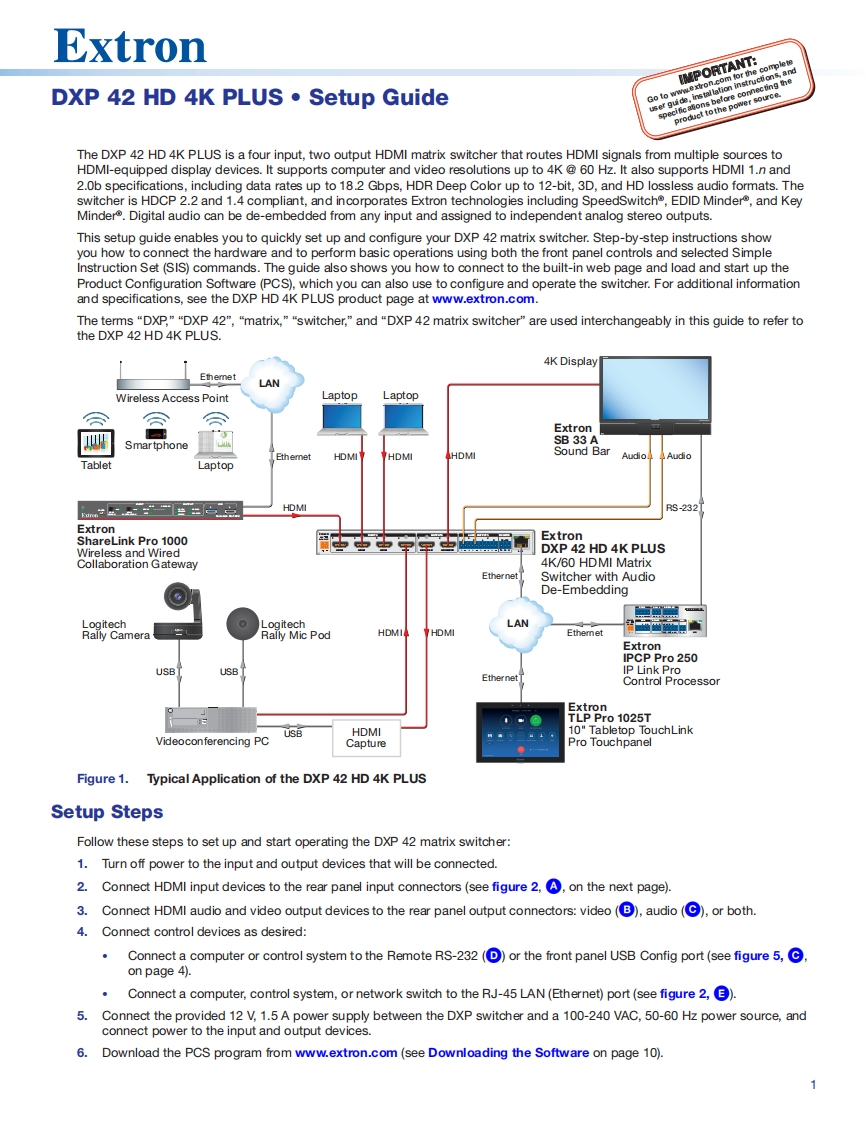
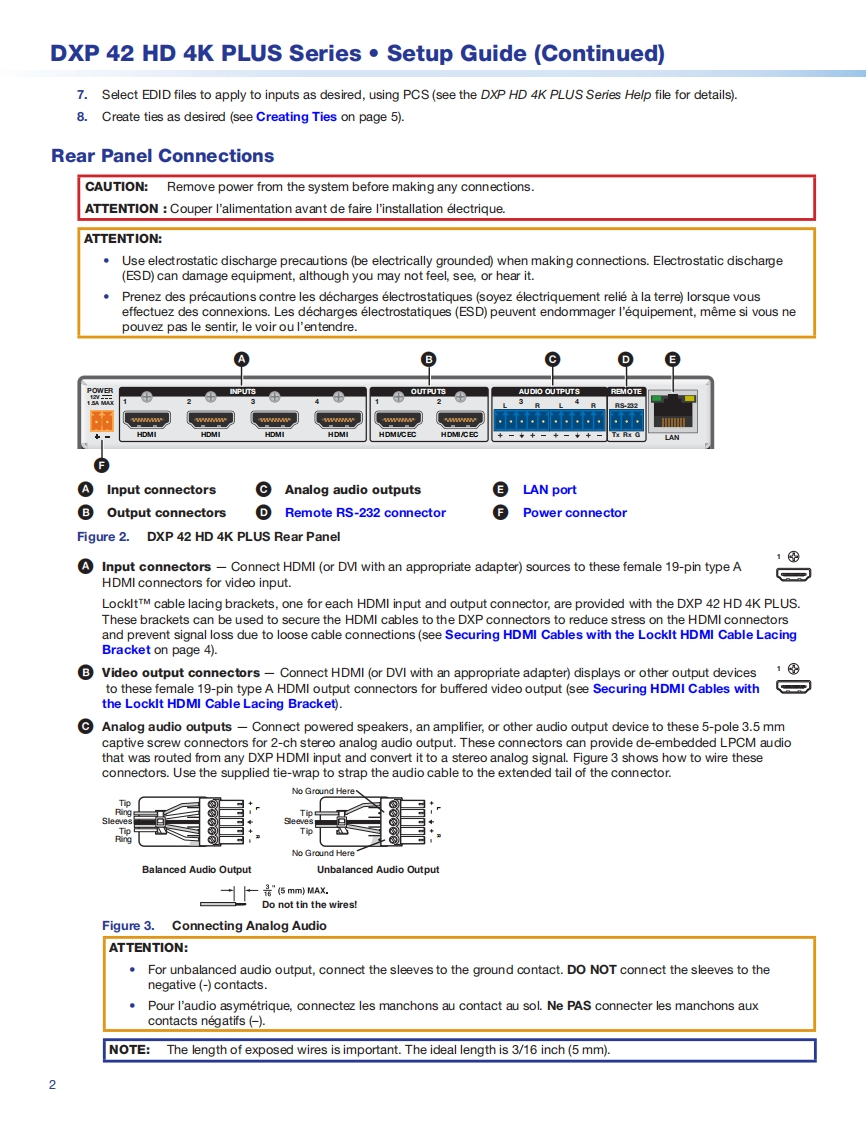
ExtronIMPORTANT:DXP 42 HD 4K PLUS.Setup GuideGo to wwnecting theproduct tothe power source.alc移The DXP 42 HD 4K PLUS is a four input,two output HDMI matrix switcher that routes HDMI signals from multiple sources toHDMI-equipped display devices.It supports computer and video resolutions up to 4K@60 Hz.It also supports HDMI 1.n and2.0b specifications,including data rates up to 18.2 Gbps,HDR Deep Color up to 12-bit,3D,and HD lossless audio formats.Theswitcher is HDCP 2.2 and 1.4 compliant,and incorporates Extron technologies including SpeedSwitch,EDID Minder,and KeyMinder.Digital audio can be de-embedded from any input and assigned to independent analog stereo outputs.This setup guide enables you to quickly set up and configure your DXP 42 matrix switcher.Step-by-step instructions showyou how to connect the hardware and to perform basic operations using both the front panel controls and selected SimpleInstruction Set (SIS)commands.The guide also shows you how to connect to the built-in web page and load and start up theProduct Configuration Software(PCS),which you can also use to configure and operate the switcher.For additional informationand specifications,see the DXP HD 4K PLUS product page at www.extron.com.The terms "DXP,""DXP 42","matrix,""switcher,"and "DXP 42 matrix switcher"are used interchangeably in this guide to refer tothe DXP 42 HD 4K PLUS.4K DisplayLANWireless Access PointLaptopLaptopExtronSmartphoneSB 33 AHDMIHDMIHDMISound BarAudioTabletLaptop片点HDMIRS232ExtronShareLink Pro 1000ExtronWireless and WiredDXP 42 HD 4K PLUSCollaboration Gateway4K/60 HDMI MatrixEthernetSwitcher with AudioDe-EmbeddingLogitechLogitechLAN幽如点Rally CameraRally Mic PodHDMIHDMIEthemetExtronIPCP Pro 250USBUSBIP Link ProEthernetControl ProcessorExtronTLP Pro 1025TUSBHDMI10"Tabletop TouchLinkVideoconferencing PCCapturePro TouchpanelFigure 1.Typical Application of the DXP 42 HD 4K PLUSSetup StepsFollow these steps to set up and start operating the DXP 42 matrix switcher:1.Turn off power to the input and output devices that will be connected.2.Connect HDMI input devices to the rear panel input connectors(see figure 2,,on the next page).3.Connect HDMI audio and video output devices to the rear panel output connectors:video(B),audio(),or both.4.Connect control devices as desired:Connect a computer or control system to the Remote RS-232()or the front panel USB Config port(see figure 5,on page 4).Connect a computer,control system,or network switch to the RJ-45 LAN(Ethernet)port(see figure 2,3).5.Connect the provided 12 V,1.5 A power supply between the DXP switcher and a 100-240 VAC,50-60 Hz power source,andconnect power to the input and output devices.6.Download the PCS program from www.extron.com(see Downloading the Software on page 10).


请登录后查看评论内容