
第1页 / 共16页
第2页 / 共16页
试读已结束,还剩14页,您可下载完整版后进行离线阅读
THE END
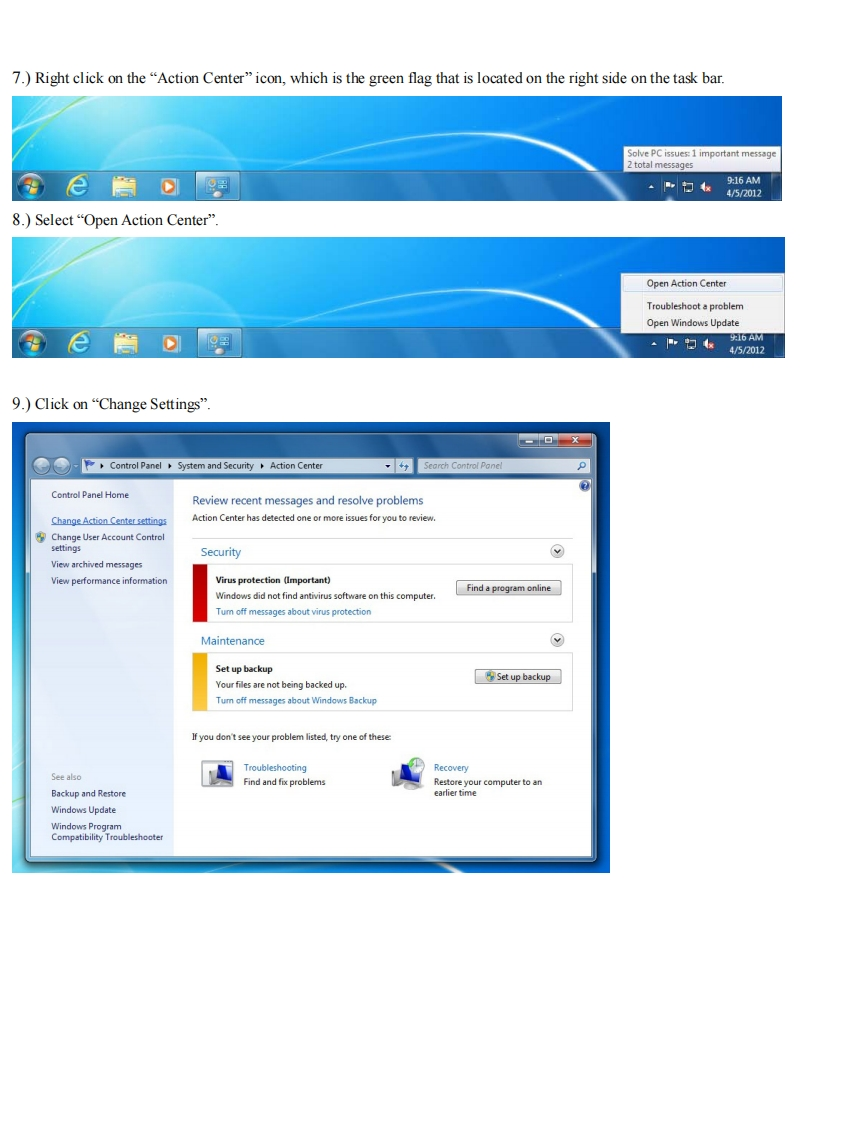
TB244(Rev2)-Configuring Windows 7 to Run CNC11 SoftwareThis document will explain how to configure Windows 7 so that the CNC11 software will function correctly.Required MaterialsOCZ Vertex Series 30Gb SATA II SSD·USB or SATA DVD player·USB mousecopy of Windows 7 Home Premium 64-bitcopy of the latest version of CNC11 softwareInstructions for Configuring Windows 71.)Install SSD and DVD player into servo PC/console.Make sure to plug the SATA cable from the SSD into SATAOon the motherboard.Software MUST be loaded on the system that you are working on.It CANNOT be loaded onto anSSD remotely and then installed onto the control.Windows does not allow that.2.)Connect a SHIELDED CAT5/CAT6 Ethernet cable to the on-board Ethemet port and the MPU11.3.)Power on the MPU11 and servo PC/console.4.)Insert the Windows 7 DVD and install the Windows software.5.)Using the mouse,right click on the task bar,which is located on the bottom of the screen,and select "Properties".ToolbarsCascade windowsShow windows stackedShow windows side by sideShow the desktopStart Task Manager√Lock the taskbarProperties9é园011A44/5/20126.)Check the“Auto Hide”option.Taskbar and Start Menu PropertiesTaskbar Start Menu ToolbarsTaskbar appearance☑Lo水the taskbar☑Auto-hide the taskbar□Use small iconsTaskbar location on screen:BottomTaskbar buttons:Always combine,hide labelsNotification areaCustomize which icons and notfications appear n the Customize..notification area.Preview desktop with Aero PeekTemporarly view the desktop when you move your mouse to theShow desktop button at end of the taskber.Use Aero Peek to preview the desktop出I austoml e the taskbar2OKCancelApply



请登录后查看评论内容