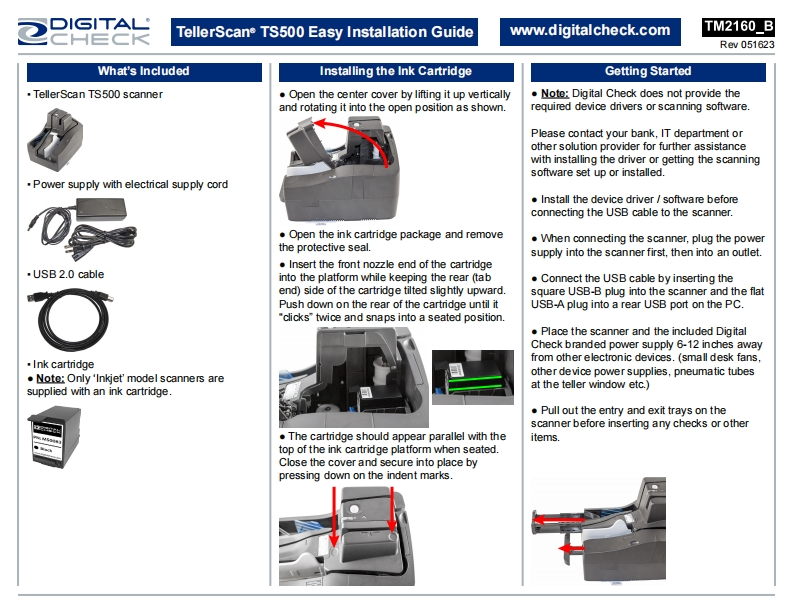
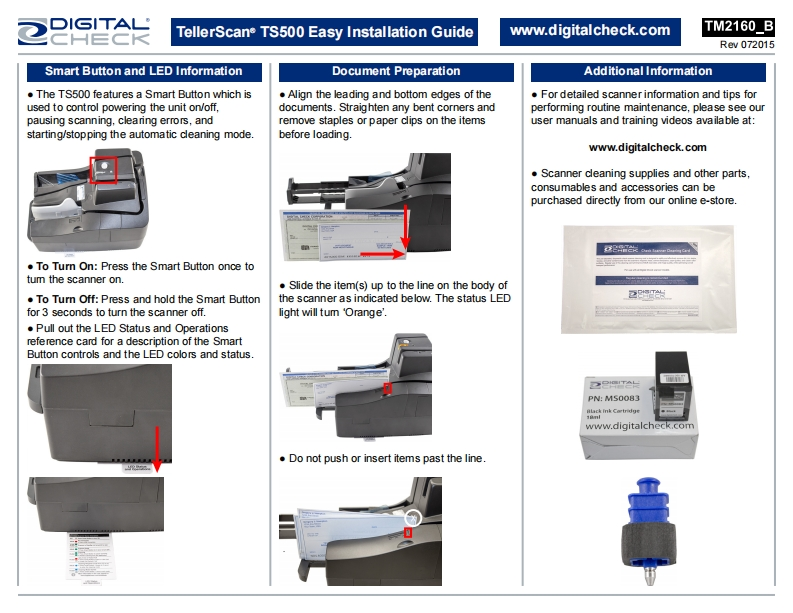
221TTellerScane TS500 Easy Installation Guidewww.digitalcheck.comTM2160_BRev051623What's IncludedInstalling the Ink CartridgeGetting Started.TellerScan TS500 scannerOpen the center cover by lifting it up verticallyNote:Digital Check does not provide theand rotating it into the open position as shown.required device drivers or scanning software.Please contact your bank,IT department orother solution provider for further assistancewith installing the driver or getting the scanningsoftware set up or installed.Power supply with electrical supply cordInstall the device driver software beforeconnecting the USB cable to the scanner.Open the ink cartridge package and removeWhen connecting the scanner,plug the powerthe protective seal.supply into the scanner first,then into an outlet.Insert the front nozzle end of the cartridge.USB 2.0 cableinto the platform while keeping the rear(tabConnect the USB cable by inserting theend)side of the cartridge tilted slightly upward.square USB-B plug into the scanner and the flatPush down on the rear of the cartridge until itUSB-A plug into a rear USB port on the PC."clicks"twice and snaps into a seated position.Place the scanner and the included DigitalCheck branded power supply 6-12 inches away·Ink cartridgefrom other electronic devices.(small desk fans,Note:Only'Inkjet'model scanners areother device power supplies,pneumatic tubessupplied with an ink cartridgeat the teller window etc.).Pull out the entry and exit trays on thescanner before inserting amy checks or other.The cartridge should appear parallel with theitems.top of the ink cartridge platform when seated.Close the cover and secure into place bypressing down on the indent marks.


请登录后查看评论内容