
第1页 / 共4页
第2页 / 共4页
试读已结束,还剩2页,您可下载完整版后进行离线阅读
THE END
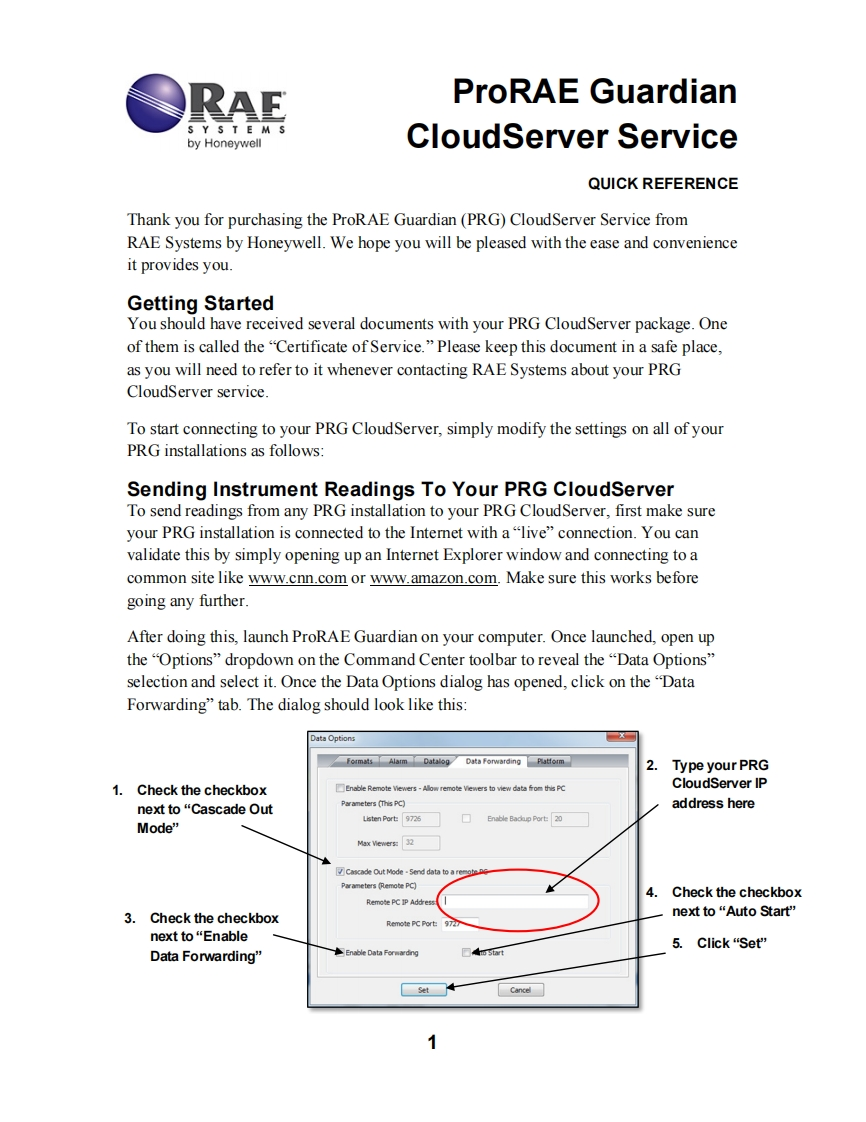
RAEProRAE GuardianS Y S T E Mby HoneywellCloudServer ServiceQUICK REFERENCEThank you for purchasing the ProRAE Guardian(PRG)CloudServer Service fromRAE Systems by Honeywell.We hope you will be pleased with the ease and convenienceit provides you.Getting StartedYou should have received several documents with your PRG CloudServer package.Oneof them is called the "Certificate of Service."Please keep this document in a safe place,as you will need to refer to it whenever contacting RAE Systems about your PRGCloudServer service.To start connecting to your PRG CloudServer,simply modify the settings on all of yourPRG installations as follows:Sending Instrument Readings To Your PRG CloudServerTo send readings from any PRG installation to your PRG CloudServer,first make sureyour PRG installation is connected to the Internet with a"live"connection.You canvalidate this by simply opening up an Internet Explorer window and connecting to acommon site like www.cnn.com or www.amazon.com.Make sure this works beforegoing any further.After doing this,launch ProRAE Guardian on your computer.Once launched,open upthe“Options”dropdown on the Command Center toolbar to reveal the“Data Options”selection and select it.Once the Data Options dialog has opened,click on the "DataForwarding"tab.The dialog should look like this:Data OptionsFormats Alarm Datalog Data Forwarding Platform2Type your PRG1.Check the checkboxEnable Remote Vewers-Alow remote Viewers to view datafrom this PCCloudServer IPnext to“Cascade OutParameters (Th他PCaddress hereListen Port:9726☐Enable Badup Port20Mode"Max Vewer:32Cascade Out Mode-Send data toParameters emote PC)4.Check the checkboxRemote PC1PAd女e3.Check the checkboxnext to“Auto Start'Remote PC Port97next to“Enable5.Click"Set""Data Forwarding"SetCancel☐



请登录后查看评论内容